Email Warmup: How to Launch New Domains Without Getting Blacklisted
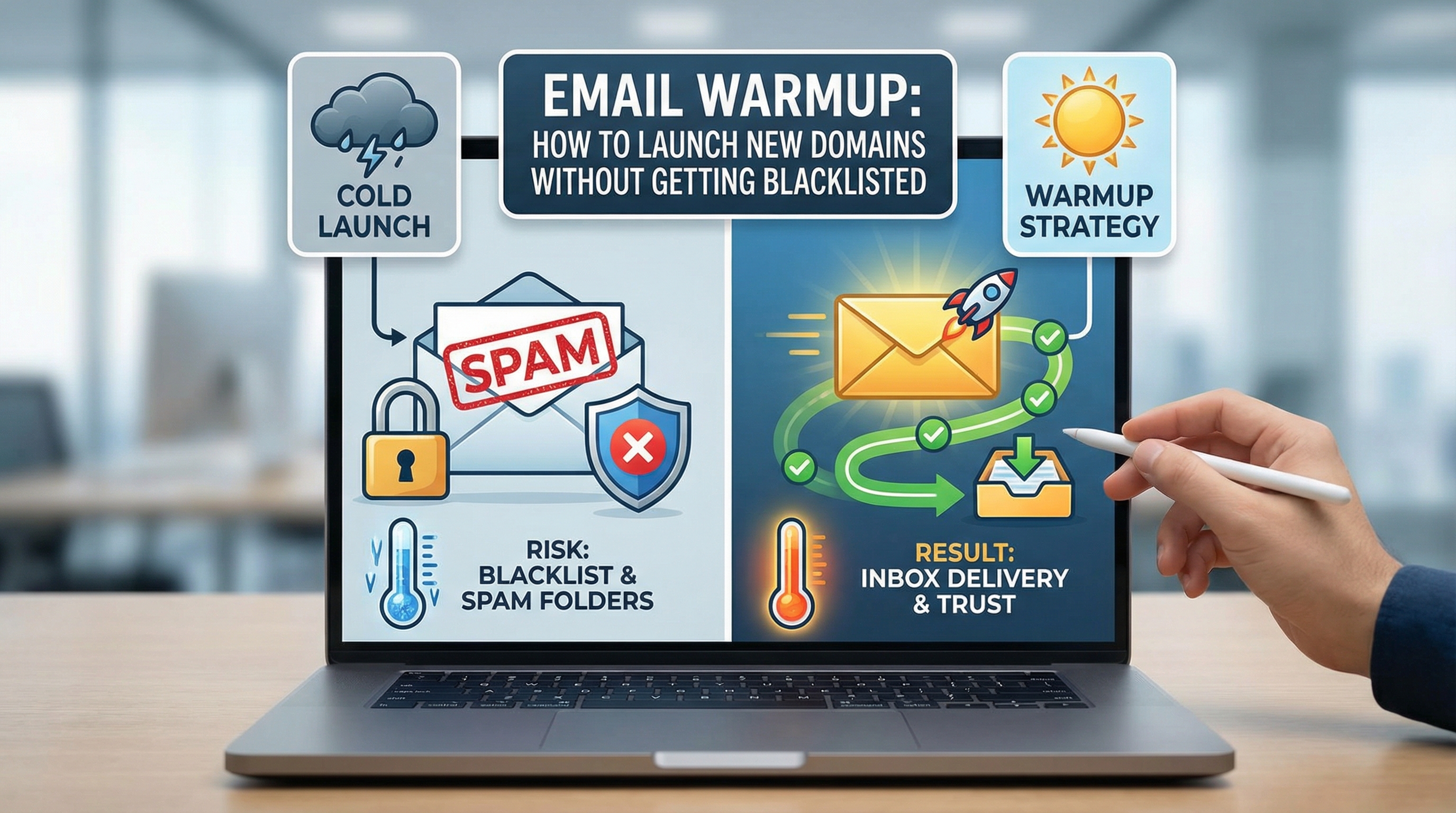
Introduction - what's email warmup and why it matters
Email warmup is the deliberate, measured process of sending increasing volumes of email from a new sending domain/IP to build a positive sending reputation with recipient ISPs and mailbox providers. Skipping or rushing warmup increases the risk of messages being routed to spam folders, rate-limited, or outright blocked - and in severe cases the sending domain or IP can be listed on reputation blocklists (blacklists).
Industry guidance and provider policies underscore the risk of poor reputation: mailbox providers use sending history, complaint and bounce rates, and engagement signals to make filtering decisions (see Google Postmaster Tools and Microsoft’s SNDS). Blacklists such as Spamhaus publish blocklist data used in real-time filtering. A methodical warmup reduces bounce and complaint spikes that disproportionately trigger filtering and blacklisting.
This post gives a practical, evidence-aligned plan: technical prerequisites, a step-by-step warmup schedule, engagement and list hygiene best practices, monitoring and troubleshooting KPIs, and a hands-on checklist for launch. Recommendations are conservative and focused on risk reduction - no overpromises, only reproducible controls.
Sources referenced throughout include RFCs for authentication, provider postmaster pages, and industry deliverability guidance from major platforms.
1. Prerequisites - technical setup before you send
Before sending any volume from a new domain, complete and verify core infrastructure that affects deliverability and reputation.
DNS & authentication
-
SPF - Publish a TXT record authorising your sending hosts. Example:
See RFC 7208 for SPF details: rfc7208.example.com. TXT "v=spf1 include:mailprovider.example -all" -
DKIM - Configure DKIM signing; publish a selector record containing the public key. Example TXT name:
selector._domainkey.example.com. DKIM spec: rfc6376. -
DMARC - Start with monitoring-only to collect reports, then escalate to stricter policies once confident:
DMARC spec: rfc7489._dmarc.example.com. TXT "v=DMARC1; p=none; rua=mailto:postmaster@example.com; pct=100"
Reverse DNS & IP considerations
- Reverse DNS (PTR) - Ensure PTR records for sending IPs map to a hostname associated with your domain. Many ISPs/filters check PTR consistency.
- Dedicated IP vs Shared IP - New dedicated IPs start with no reputation (requiring warmup). Shared IPs inherit reputation (good or bad) from other senders. For predictable deliverability, use a dedicated IP and warm it; if you must use shared IPs, confirm the provider actively monitors reputation.
BIMI & brand indicators
BIMI (Brand Indicators for Message Identification) is optional but helps inbox display once authentication and DMARC are in place. Implement after DMARC enforcement. More on provider-specific requirements is available via mailbox provider postmasters.
Verification commands & tools
- Check SPF/DKIM/DMARC with dig:
dig TXT example.comanddig TXT selector._domainkey.example.com. - Verify PTR with:
dig -x 203.0.113.5 +short. - Use provider postmaster dashboards: Google Postmaster, Microsoft SNDS.
2. Step-by-step warmup plan - progressive volume, cadence, and content
A gradual ramp coupled with high-engagement recipients builds positive signals. Below is a conservative 4-week sample warmup for a new dedicated IP and domain. Adjust upward or downward based on list quality and engagement.
Sample 4‑week calendar (conservative)
| Day/Week | Daily Volume (per day) | Recipients & Content mix |
|---|---|---|
| Week 1 (Days 1-7) | 20 → 100 (start very small) | Most engaged users, transactional + plain-text welcome |
| Week 2 (Days 8-14) | 150 → 500 | Expand to highly active segments; keep content simple, minimal images |
| Week 3 (Days 15-21) | 1,000 → 5,000 | Add moderate-engagement lists, maintain engagement-based sequencing |
| Week 4 (Days 22-28) | 10,000 → full target (incremental) | Introduce cold segments with reactivation sequence; monitor closely |
Rationale and cadence
- Start with your highest-engagement recipients - opens/clicks signal to ISPs that your mail is wanted. Seed the IP/domain with recipients who've recently interacted (past 30-90 days).
- Double cautiously - increasing too quickly yields bounce and complaint spikes. Typical conservative doubling intervals are every 48-72 hours early, then weekly at larger volumes.
- Mix mail types - include transactionals and known-opt-in marketing; avoid introducing unknown cold blasts until reputation is stable.
- Test content simplicity - initially prefer plain-text or lightly formatted HTML; aggressive tracking links/images can reduce engagement.
Sample sending snippet (pseudo)
Begin each day with a small batch to your top engaged segment, watch metrics for 24 hours, then send the rest of the day if KPIs look healthy. If complaint/bounce thresholds spike, pause and remediate (see troubleshooting).
3. Engagement & list hygiene - keep your list healthy
Good list hygiene is the single most important factor in a successful warmup. ISPs treat low engagement and high bounces/complaints as signs of poor list quality; eliminating rotten addresses protects your reputation.
Seeding for engagement
- Send to most recent engagers first: users who opened or clicked within the last 30-90 days. This yields higher open rates and signals to ISPs that your mail is wanted.
- Use seed lists intelligently: include internal test accounts across Gmail, Outlook, Yahoo, etc., and a small set of seed monitoring tools to detect inbox placement; don't flood ISPs with test addresses.
Segmentation & reactivation
Treat reactivation and cold lists differently:
- Reactivation flows - send a low-frequency, explicit re-engagement message to lapsed users; only resume regular sending after positive interaction.
- Cold lists - don't include truly cold lists (no activity in 12+ months) in warmup. If you must send to cold addresses, use a gradual re-permission campaign with clear unsubscribe and low initial volumes.
Bounce and complaint handling
- Hard bounces - remove immediately.
- Soft bounces - retry up to three times; remove if persistent.
- Complaints - honor ISP feedback loops where available and remove complainants immediately. Industry guidance suggests staying under 0.1% complaint rate where possible; providers like Amazon SES recommend minimizing complaints (see AWS best practices).
Benchmarks and metrics
Common industry benchmarks (guidelines vary by provider):
- Complaint rate: aim for <0.1% (higher values correlate with filtering).
- Bounce rate: keep below ~2% for marketing sends; lower is better.
- Open / click rates: higher engagement accelerates trust - prioritize segments with best historical performance.
These are directional; consult your ESP and provider docs for absolute thresholds.
4. Monitoring, metrics & troubleshooting
Continuous monitoring during warmup lets you catch issues early. Define KPIs and automated alerts so you can pause or throttle before damage accrues.
Key KPIs to track
- Delivery rate - percent accepted by recipient MTAs (not necessarily inbox placement).
- Bounce rate - hard vs soft; elevated hard bounces indicate poor list hygiene or invalid addresses.
- Complaint (spam) rate - use ISP feedback loops and provider dashboards.
- Open & click trends - engagement trajectory over time.
- Inbox placement - measured via seed accounts or placement tools.
Alert thresholds (example)
- Complaint rate >0.2% — pause expansion and investigate.
- Bounce rate >5% instantaneous or >2% sustained — stop and remediate.
- Sudden drop in inbox placement or sharp decrease in opens — throttle and audit recent recipient cohorts.
Reading SMTP responses & blacklist checks
SMTP responses give immediate clues. Examples:
250- message accepted.421or4xx- temporary; implement retry/backoff.550 5.7.1- permanent reject or policy block; investigate content/reputation.
Check blocklists quickly with services such as Spamhaus and diagnostics like MXToolbox. If listed, follow the blacklist’s removal process after you resolve the root cause.
Recommended monitoring tools & API examples
- Google Postmaster Tools - reputation, spam rates for Gmail.
- Microsoft SNDS - data for Outlook/Hotmail.
- ESP dashboards (SendGrid, Mailgun, SparkPost) for bounce/complaint logs and message events.
- Inbox placement tools: GlockApps, Litmus, or 250ok/Validity for seed-based inbox metrics.
Example API approach: ingest ESP webhooks for bounces and complaints, push those events into automation that removes addresses and flags segments. This reduces manual lag and limits reputational damage.
If reputation drops
- Immediately pause volume increases and limit sends to highest-engagement addresses.
- Review bounce/complaint logs and remove offending segments.
- Audit recent content and infrastructure changes (links, images, From headers, DKIM/SPF alignment).
- Check for blacklisting and follow removal workflows; notify your ESP for support.
- Once KPIs stabilize for several days, resume gradual ramp.
5. Checklist, tools & references
Immediate launch checklist
- Publish and verify SPF, DKIM, DMARC (start p=none for reporting).
- Confirm reverse DNS for every sending IP.
- Decide dedicated vs shared IP; if dedicated, plan warmup schedule.
- Identify top-engagement recipient cohort (last 30-90 days).
- Prepare transactional sends and simple marketing templates for initial batches.
- Configure webhook/event ingestion for bounces and complaints and automated removal logic.
- Register accounts with Google Postmaster and Microsoft SNDS; set up seed monitoring.
Recommended providers & tooling
- ESPs and deliverability: SendGrid, Mailgun, SparkPost, Postmark, or your existing ESP with dedicated IP options.
- Monitoring & inbox placement: Google Postmaster, Microsoft SNDS, GlockApps, Litmus, or Validity (250ok).
- Blacklist checks & diagnostics: Spamhaus, MXToolbox.
Common pitfalls and fixes
- Pitfall: Sending cold lists too early. Fix: run a short re-permission campaign or exclude cold lists during warmup.
- Pitfall: Ignoring DMARC reports. Fix: collect and analyze rua reports and correct sources failing alignment.
- Pitfall: No automated bounce/complaint processing. Fix: implement webhook pipelines to remove bad addresses immediately.
References
- RFC 7208 - SPF
- RFC 6376 - DKIM
- RFC 7489 - DMARC
- Google Postmaster Tools
- Microsoft SNDS
- Spamhaus Project - blocklists
- AWS SES - sending best practices
- Mailchimp - about bounces
Short case study (example)
A SaaS operator launched a new dedicated sending domain and followed a 4-week conservative ramp. They began with 50 highly engaged users per day, doubled every 48-72 hours in week 1-2, and moved to larger increments in week 3-4. Automated removal of hard bounces and immediate unsubscribes kept bounce & complaint rates below 0.1-0.2%. By week 4 their inbox placement (measured via seeds) matched prior domain levels and no blacklist events occurred. Key success factors: high-quality initial cohort, strict automation for bounces/complaints, and active monitoring via Postmaster/SNDS.
Final actionable checklist
- Verify SPF/DKIM/DMARC and PTR before first send.
- Start with top-engaged recipients only; keep content simple.
- Ramp volumes conservatively (sample calendar above).
- Automate bounce/complaint handling and remove offenders immediately.
- Monitor KPIs daily and pause expansion on threshold breaches.
- Use postmaster tools and seed testing to verify inbox placement.